How to search keywords on Pinterest and finally get that traffic going
How do you find keywords on Pinterest?
Do you search for keywords on Pinterest at all?
Is there a tool to help you search keywords on Pinterest in 2020?
In today’s post, we will talk about my nine ways to search for keywords on Pinterest.
And guess what!
They are all free.
Now, I’m always open to paying for a good service that will help me improve my blogs, get that traffic going, engage my audience and set things correctly.
But there are a few areas of blogging that I could improve drastically and do for free. It’s so much information out there; all I need to do is put it together and analyze it properly.
Pinterest SEO in 2020

Pinterest SEO is one of those things you could do without paying for a tool.
Today, I will show you how.
Below are my favourite nine ways to search for keywords on Pinterest.
Why would you listen to what I have to say about Pinterest?
If this is the first post you read on this blog, now would be the time to mention that I bring over 200K page views per month to my main blog that has nothing to do with blogging about blogging. My niche is very restrictive, and it isn’t popular at all – I blog about relationships and love. I’ve also got a self-development section, but I don’t push it too much as that’s my focus for this blog (the one you’re on right now).
How do I do it?
I’ve explained my Pinterest strategy for 2020 in details here (there will be a link at the end as well).
And there’s something I work with on Pinterest – SEO and keywords.
I’ve slowly found out what ranks well on Pinterest for my niche and where the “dead” areas are.
There’s only one reason you should learn Pinterest SEO, and that’s expanding your audience reach.
Your people, your audience, your readers are on Pinterest; you just need to know how to reach them.
Using keywords on the right places is the smart way to do it.
How do you SEO on Pinterest?
Well, this post is all about finding the right keywords and placing them on the right spots, so you get you pins in front of your audience.
9 Tips on How to search keywords on Pinterest
1. Pinterest Search Box
The first one is the easiest. It’s exactly in front of you, it’s easy to navigate and gives you tons of information.
It’s Pinterest’s search box and the drop-down suggestions you see once you start typing your main keyword.
⇓Here’s an example of what I mean below⇓

Once I started typing “art projects” Pinterest already started guessing what I look for.
Why?
Because these are the most popular searches by Pinterest users. You get suggestions that most people type in. It works exactly like Google search box.
2. Pinterest Guided Search
Now, let’s press enter on our search “art projects”.
⇓Here’s what we get⇓

Pinterest guides the users at every point of their search. The idea? To help them find exactly what they’re looking for fast and easy. Also, to give them ideas and more options to add to their search, so the results narrow down even more.
If you choose one of the options Pinterest suggests, you will likely see even more suggestions – that’s the narrowing down of the ideas. You can combine and experiment with the results you see until you’re sure that the keyword you’ve chosen shows the results you need to see.
Now, this is the keyword you’re aiming for.
3. Pinterest topics
Yes, Pinterest topics can quickly help you decide on a keyword. I mainly use it to name my new boards. If I see a specific keyword as a Pinterest topic, I know that I must consider having a board with that name.
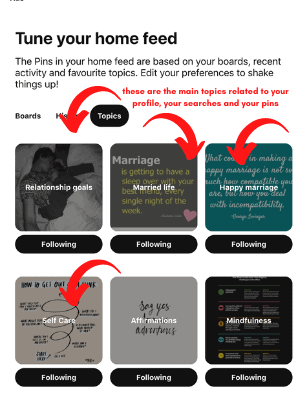
Now, one of the ways to get to Pinterest topics is to click on your Pinterest profile icon and choose to Tune Your Home Feed (see photo below). Once you ‘re there, you will need to click again on Topics and see what Pinterest offers you. These are good keywords for boards.
⇓Let’s see how all this looks in photos.⇓

What happens if you have a keyword on your mind, but you don’t see it listed in your profile’s topics?
Or maybe you want to include a new category, and you’d love to see some suggestions?
Here’s my second tip on how to work with Pinterest’s Topics.
You will have to play for a while with this one, but sooner or later you will find what you’re looking for.
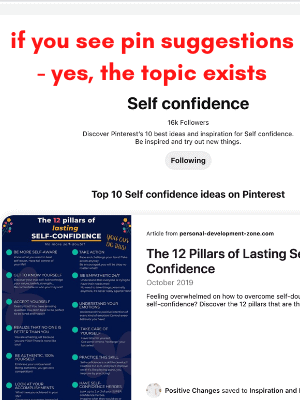
Here’s how to find new topics on Pinterest.
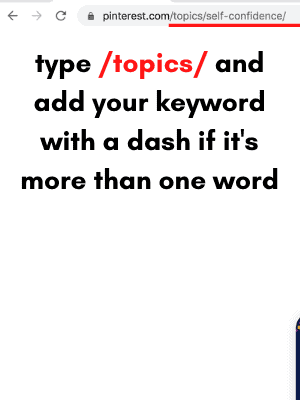
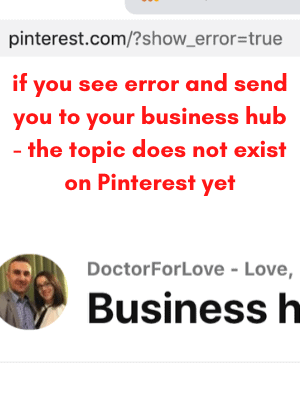
In the URL section of your page, after Pinterest’s main address, you need to write “/topics/” and add the keyword you’d like to check. If your keyword is two or more words, you want to include a dash between the words.
⇓See photos below⇓
⇓⇓⇓⇓⇓
⇓⇓⇓⇓⇓
4. Pinterest Trends
This is a new feature offered by Pinterest, and I think they still test it.
I’m not sure everyone has access to it, but if you do, you could use it to see trends on Pinterest. It works exactly like Google Trends and helps you understand if a keyword is on its rise or fall.
You can find it after you click on Analytics.
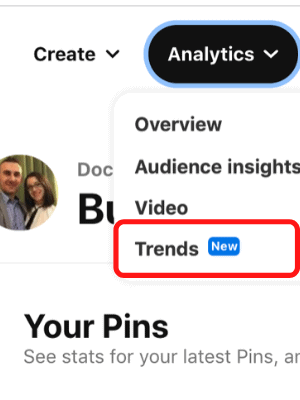
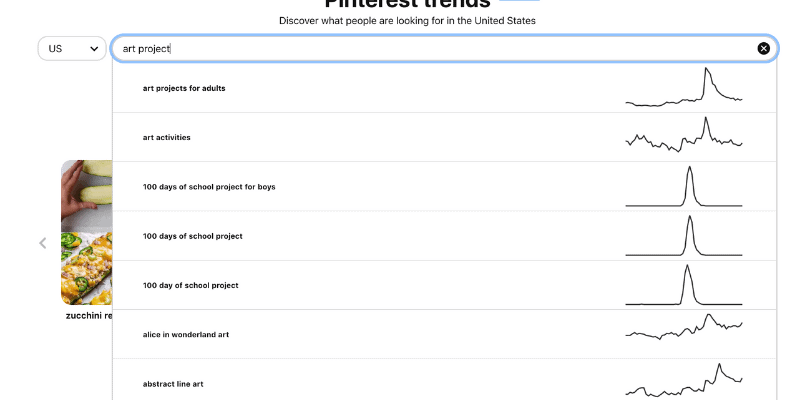
After that, just type the keyword you’d like to check. In our case, that would be “art projects” again.
The great part there’s that you can look at the Trends in a specific country, which helps you target your right audience.
Disclaimer: This is still a new feature by Pinterest. I’m not sure if they’ll keep it, but they certainly need to improve it as sometimes the suggestions don’t make any sense. However, t’s a good place to brainstorm keywords ideas.
5. 100 Pinterest Trends
Another place to get more content ideas, trends insights and keyword ideas is by exploring 100 Pinterest Trends. It’s a simple PDF created by Pinterest that will help you understand what’s trending on their platform right now.
You can get the 100 Pinterest Trend PDF by clicking here.
6. Another Search Box Trick
Nope, we haven’t finished with the Search box yet.
If you click on the Pinterest Search icon, without typing anything, you will see two things:
- Popular on Pinterest
- Shopping ideas
⇓See screenshot below⇓

7. Saved Pins
We are getting a little bit deeper now into the search possibilities.
This option will help you understand how Pinterest sees your pins, which pins they rank them for and it will also give you ideas on what other keywords you could add to your pins, pin descriptions and pin titles.
To get to that information, you will need a few things:
- you must have already pinned a pin for that post
- someone else needs to save that pin on a board with no other pins.
Once you upload your pin on Pinterest, you might have to wait for a few days before someone saves it on a new board. Monitor your pin and once you see that a user has saved it on a new board, go on that board. Here’s what you will see.
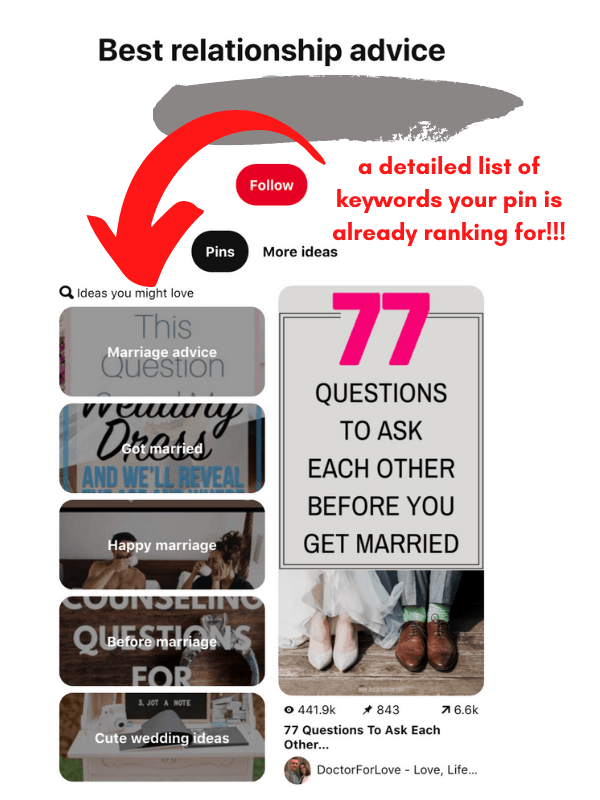
Yes, you can actually see what other keywords you can rank this post for. Keep in mind that sometimes, Pinterest shows weird suggestions, so you want to be sure you choose the right keywords.
You can include these keywords in your next pin for this post, or you could repin to boards that include these keywords. You can even create posts on these topics because obviously, it’s something that people care about on Pinterest.
8. Keep using your pins
We keep using your pins for this one.
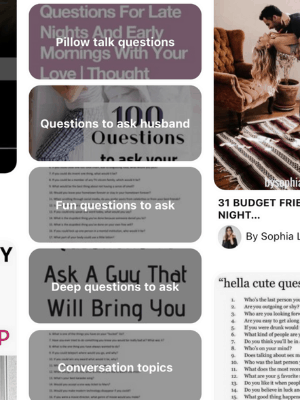
Open your pin and simply scroll down. At some point, Pinterest will show you similar suggestions to the previous tip above. The suggestions are different; I used the same pin from above:
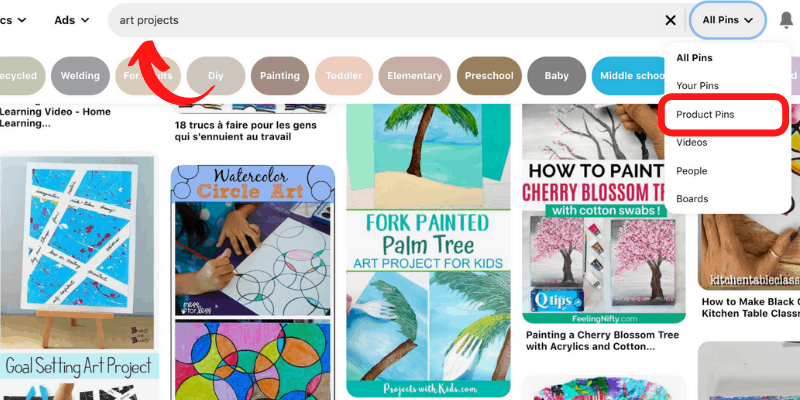
9. Product Pins
This tip on how to search keywords on Pinterest is useful if you have a product you’d like to show to more people on Pinterest or your posts include niche products.
Once you type in your keyword in the Pinterest search box, press Enter, and on the side, you will have options to see All Pins, Your Pins and so on. Choose “Product Pins”.
Then you need to find the pin that offers a product similar to what you’d like to rank for. Open it and scroll to see suggested keywords.
More Posts To Help You Rank on Pinterest



⇓Liked this post? Please, Share⇓

How to search for keywords on Pinterest

Blogger, dreamer, procrastinator, and lover of everything soul-touching. My mission is to make you laugh, provoke your thoughts, light up your day and inspire you to fall in love with life and yourself.