So you are on that stage of your blogging journey where you’d like to introduce a few (or more) time-saving and useful extensions. I must warn you that you are on the edge of completely immersing yourself in a few-hour-long journey that will actually give you some good results.
Today, I share with you some of the best Chrome extensions for bloggers. I use a good chunk of them and have heard awesome reviews for the rest.
What are Chrome Extensions?
According to their Developer site, Chrome extensions are “software programs, built on web technologies .. that enable users to customize the Chrome browsing experience.” (Source)
Simply put, they act as shortcuts to performing tasks that would usually take you way longer. They are time-savers and help simplify some processes and provide you with a faster and better browsing experience.
Why Do You Need Chrome Extensions As a Blogger?
Whether you have one or three blogs (like me), you are always busy, and your to-do list tends to grow… only! That’s a blogger’s life, and we love it. Being busy and having many projects to complete makes me feel productive and living the dream (yes, I am that type of person).
However, “busy being busy” isn’t what neither of us should strive for, as that isn’t what makes a blog successful. When you combine some good blogging strategies with fast and efficient work, you will notice the results entering your bank account (and email list) pretty quickly.
No matter how many hours we actually blog a day, there are always a few things that could improve even more.
Chrome Extensions Help
This is where the Chrome extensions could help you be more productive by saving you the precious time you could use in a better way.
Let me ask you a few questions:
- Do you wish you could just listen to the post you just drafted instead of reading it over and over again? There’s an extension for that.
- What if you didn’t have to log into your affiliate program to create the perfect affiliate link? There’s an extension for that!
- What if you are fed up with having 49 open tabs? What if you could just close them all, but get instant access to them two weeks from now (when you actually need them)? Yes, there is an extension for that!
- Wouldn’t it be great to find what text font your favorite site uses without having to scroll the fonts on Canva for half an hour (realizing it’s not there)? Yes, you bet there is an extension to do that too!
Join me in creating a productive and functional blogging working process that will make you efficient and successful. See 25 best Chrome extensions for bloggers.
Disclosure: This post contains affiliate links, which means that if you sign up or make a purchase I might get a small commission at no extra cost to you. Thank you for supporting my business. See full disclosure.
Chrome Extensions For Better Writing Process
Coming up with the right post idea and spending half an hour (at minimum) researching the perfect keyword is just exhausting, I know. However, the moment you end with these two things, the real work starts – drafting the full post and making it useful and easy to read. Here are a few extensions I use daily that save me time, energy, and nerves.
1. Grammarly
Number of current users: over 10 000 000
A number of current users: over 10 000 000
Free version: Yes
Paid version: Yes
Requires registration: Yes
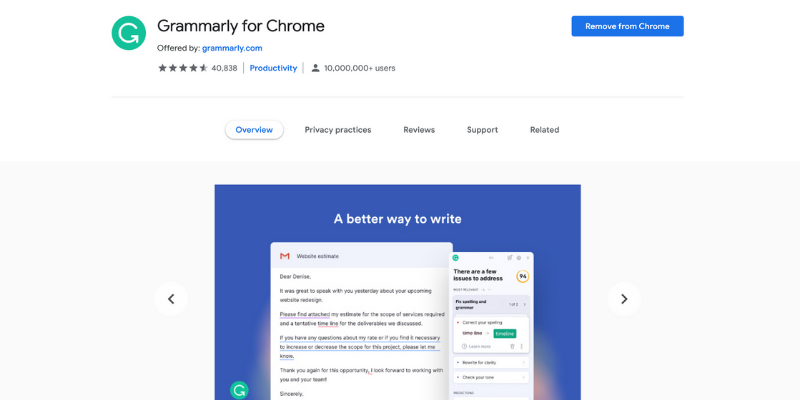
No matter how many posts you see before you choose your perfect Chrome extension, Grammarly is probably going to be in all of them. That’s because it truly has become the best writing tool that’s out there. I have it from the first day of my blogging career and use it for everything – posts, emails, social media comments, and more.
Firstly, I am not a native English speaker, so I need something like that to help me be more confident with my words. However, I also find it very easy to let my thoughts flow without thinking of the result. After I write everything, I would go in and check it with Grammarly for a few minutes. I love how fast it highlights the problems it finds, and I also learn not to repeat some grammar mistakes. I have the Pro version of the tool and just added the extension to my Chrome bar. However, Grammarly offers a free version, too; you could check it out here.
Add Grammarly as a Chrome extension by clicking here.
2. Read Aloud
A number of current users: over 1 000 000
Free version: Yes
Paid version: No
Requires registration: No
There are two reasons you need a text-to-speech tool:
- Often, even if I read a paragraph seven times I would still skip some common sense mistakes. If you can relate to that, you need a text-to-speech tool
- Hearing (not just reading) your posts helps you find repetitions and unnecessary paragraphs. I’ve deleted full sentences because they wouldn’t give any information to the reader, but I would realize that only after I actually hear the post instead of read it.
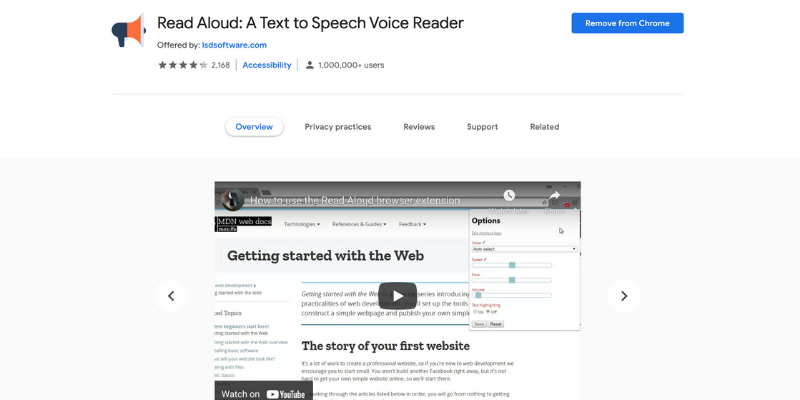
Read Aloud is the text-to-speech tool I use. It is a very simple, no-fuss style of tool that you could just download as a Chrome extension, and that’s about it. The reading voice is cheerful and makes me smile every time I listen to it. In fact, I work on an iMac but still prefer the extension’s voice better.
Add Read-Aloud as a Chrome extension by clicking here.
3. Text Blaze
A number of current users: over 90 000
Free version: Yes for up to 20 snippets and 2500 characters in a snippet
Paid version: Yes, plans start at $2.99
Requires registration: Yes
Okay, did you notice how I present each one of the extensions with some initial information? (number of users, if it’s a free version and so on…)? To do that, I just insert a shortcut, and it appears automatically, ready for me to insert the additional info. And I do it with Text Blaze.
This easy-to-use tool is one of the biggest time-savers when it comes to writing. It allows you to create keystrokes (shortcuts) to phrases you use often. In this way, it saves you the time of typing the same words, again and again, every time. It also allows you to create templates you could just insert wherever in a matter of a few seconds.
As a blogger, it’s especially beneficial when writing emails and outreaching to other bloggers and companies. If you are like me and keep using different phrases when opening or closing an email conversation or get asked the same questions again and again, this tool could be a life-saver.
The best part: you could install it on one device and use it on all of your devices. See the video below on how fast it actually works.
Add Text Blaze as a Chrome extension by clicking here.
Chrome Extensions for Better Analytics
Every great blogger knows that the one way to being successful is through better analysis of the blog’s audience, the competitors, the market, and basically everything else in between and beyond. Simply said, analyzing stuff is good. Therefore, I’ve selected a few awesome plugins that will help you up your knowledge regarding .. well, everything.
4. NoFollow
A number of current users: over 100 000 users
Free version: Yes
Paid version: No
Requires registration: No
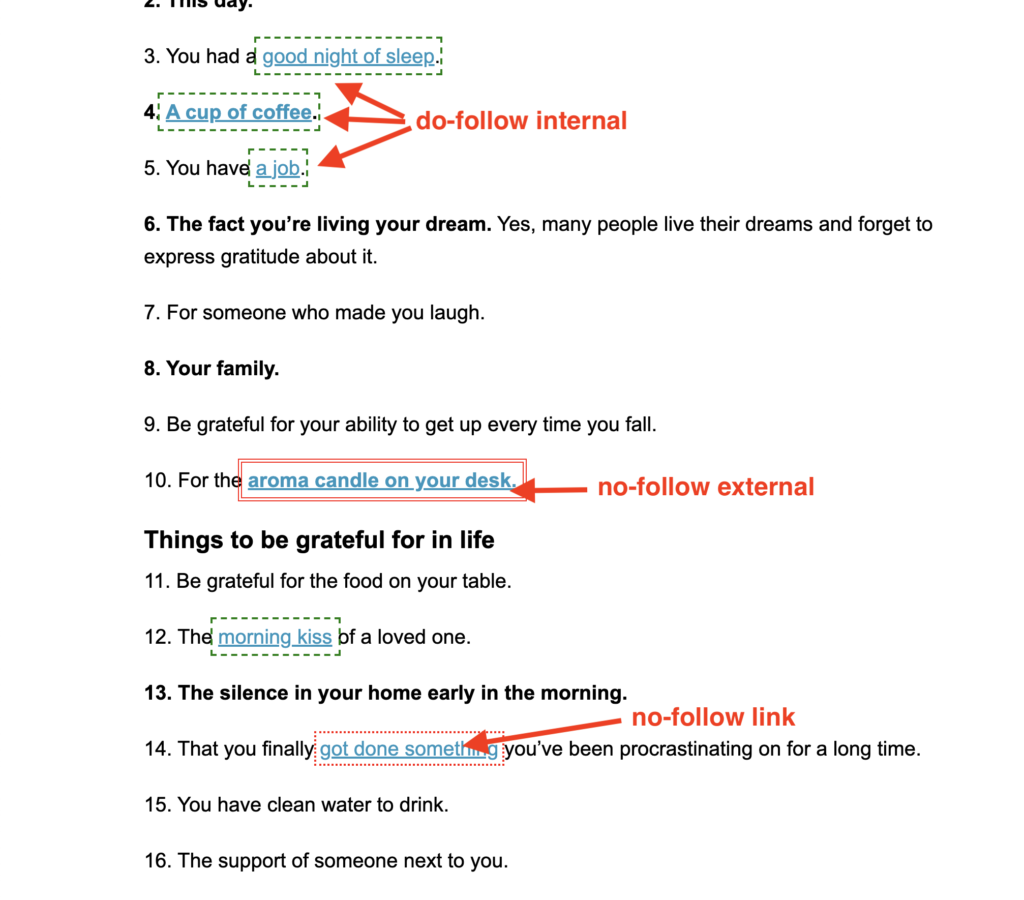
Have you ever gone to a competitor’s blog post and wondered: do they use a lot of external links? How about when you contribute to a round-up where you are promised a do-follow link? Do you check that? How? What if you just need to check your own blog’s do-follow and no-follow links? Everything sounds like a lot of work, right? Wrong!
With NoFollow, you could do all that and more. This completely free extension shows you every do-follow and no-follow link and tells you if a link is external and even shows no-follow image links. That alone could save you a lot of digging.
I mainly use the plugin for my own blogs, but I admit that I’ve sneaked into a few competitors’ sites to check on them. I mean… wouldn’t you do that?
Add NoFollow as a Chrome extension by clicking here.
5. Alexa Ranking Toolbar
A number of current users: over 700 000 users
Free version: Yes
Paid version: Not for the extension itself, Yes for deeper analysis
Requires registration: Not for the extension itself, Yes for deeper analysis
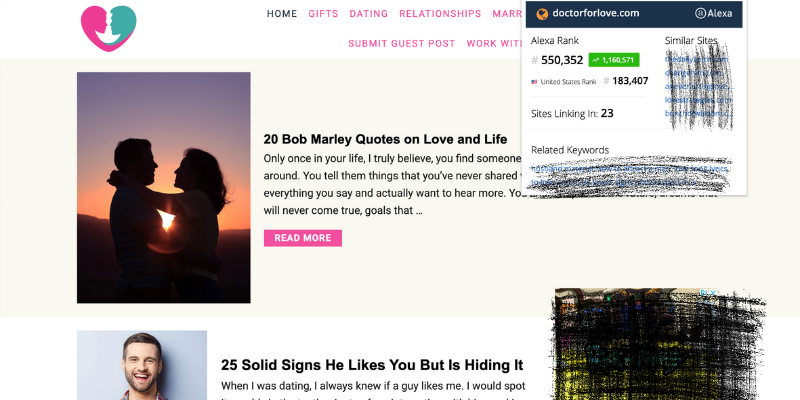
Alexa Ranking Toolbar shows you basic analytical information for the sites you browse. If you accidentally came across a site you’d wish to check (we all do that, no worries), Alexa’s extension will let you know if it’s worth digging deeper. It gives you basics such as Stei Rank, Related Keywords, and Similar Sites.
Add Alexa Ranking Toolbar as a Chrome extension by clicking here.
6. Enhanced Google Analytics Annotations
A number of current users: over 4000 users
Free version: Yes
Paid version: Yes
Requires registration: Yes
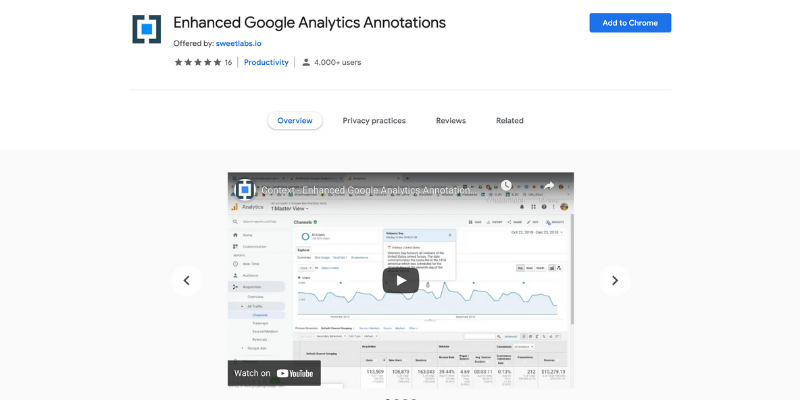
This plugin shows you confirmed and unconfirmed Google updates as well as selected countries’ holidays. That would mean that next time you see a drop or increase in your traffic, you will also be able to quickly check if that comes from an update and if it’s seasons/holiday-related.
Add Enhanced Google Analytics Annotations as a Chrome extension by clicking here.
7. Moz Bar
A number of current users: over 700 000 users
Free version: Yes
Paid version: Yes
Requires registration: Yes
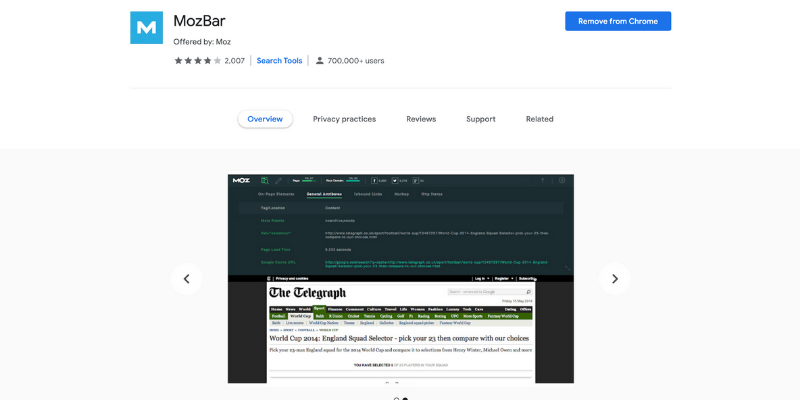
The Mos Bar extension is probably one of the best Chrome extensions for bloggers. Widely popular, this tiny bar under the search results on your google page could answer more than a few SEO ranking questions you have.
The extension lets you get instant information on the site’s PA (page authority) and DA (domain authority). A further click on the link analysis gets you even deeper and shows you ranking keywords, linking domains, and more.
The best would be to get a Moz subscription and use the extension to its maximum. However, even the basic information from the free version could be great if you know how to use it.

5 Most Important Things To Focus On As a New Blogger
Best Productivity Chrome Extensions For Bloggers
It was about time we hit the productivity button on this list with extensions. If you are a blogger (I assume you are), productivity must be one of your secret obsessions. Time is never enough to write all the posts from your content planner, pin all the pins, or answer all emails… And I am not even touching on the other social media, product creation, email marketing, and speed tests (of your blog, not yours).
So, we got to the best part (well, my favorite part) of this list – bets productivity chrome extensions that bloggers could use.
8. Eyedropper
A number of current users: over 900 000 users
Free version: Yes
Paid version: No
Requires registration: No
Eyedropper is one of my most favorite extensions that I use daily. It requires you to simply install the extension and, with one click only, and then pin it to the bar. Every time you see a color, you’d wish you could find its hex code; just use the Eyedropper. See the video below for a clear example.
How to use it as a blogger: See video above.
9. Toggl
A number of current users: over 300 000 users
Free version: Yes
Paid version: Yes, it starts from $10 a month
Requires registration: Yes
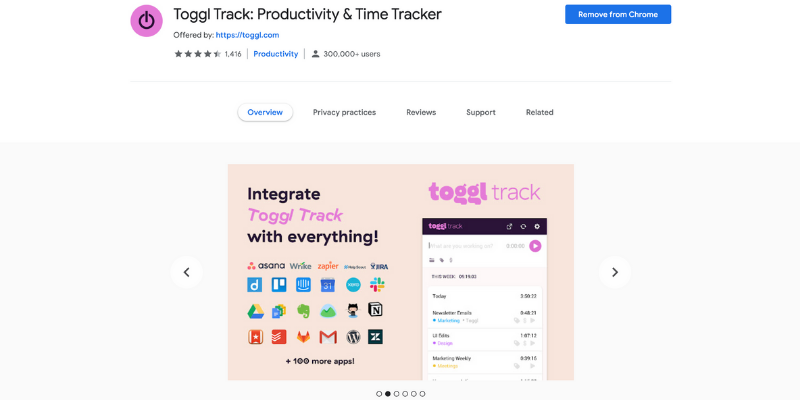
Toggl is a widely used tool by most VAs and remote workers who get paid hourly. It allows you to track how long you stay on a task, sets timelines, offers project templates, and gives the option to work using the Pomodoro technique.
As a blogger, you could use it in so many ways, such as:
- tracking how long it takes you to research for a blog post
- or even write the first draft of that post
- track how long it takes you to create all of the pins you have to publish this week
- track active working time (which means you could exclude browing on Instagram and Tiktok)
Toggl is great when you are trying to be more consistent with your work and have a deeper understanding of how long each task takes you. I use it to do some batch work when I am limited on time (knowing beforehand how long a task would take me).
How to use it as a blogger: Start the timer next time you decide to research a blog post. Then track how long it takes you to outline your post or to write the first draft. Do it for a few weeks, and then you will estimate time to research, outline and draft a blog post. Use this information for the busy weeks (holidays, life events, full-time job).
Add Toggl as a Chrome extension by clicking here.
10. Fonts Ninja
A number of current users: over 400 000 users
Free version: Yes
Paid version: No
Requires registration: No
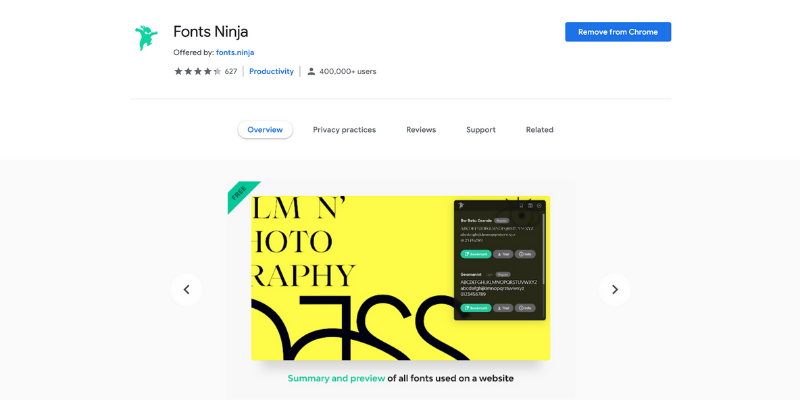
This simple extension allows you to “steal” the names of the fonts you like. If you visit a web page where the font is something you’d really like to look into and maybe use it yourself for a project (or a social media post), it could take you less than 5 seconds to find its name. Just activate the tiny green ninja on the top of the extension bar and hover over the text. You will immediately see the font name on the top right corner of the browser. Yes, it’s that simple!
How to use it as a blogger: Bookmark your favorite font and go on with your day, then come back a few hours later and see what that font you needed was. Experimenting with different fonts is especially beneficial for social media posts. In that way, you could increase engagement and bring even more people to your blog.
Add Fonts Ninja as a Chrome extension by clicking here.
11. Nimbus Screenshot and Screen Video Recorder
A number of current users: over 400 000 users
Free version: Trial
Paid version: Yes
Requires registration: Yes
You saw a few videos in this post already – they are all done with Nimbus Screenshot and Screen Video. This extension gives you tons of features, and it’s perfectly usable even with its free version. You could record videos, take screenshots and even screenshot a full web page.
For example, I just did a full-page screenshot of my Home page of this blog (see below). I could use the same technique for sales pages I’ve created, courses, or even a quick scroll through an eBook. So many options and they all require just one plugin.
How to use it as a blogger: Add screenshots and record your own videos and tutorials. Share them and easily insert them into your blog posts for better engagement.
12. Screenshot Master
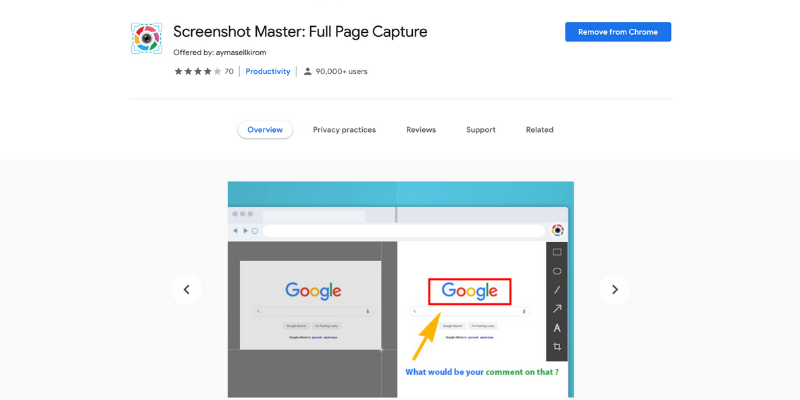
A number of current users: over 90 000 users
Free version: Yes
Paid version: No
Requires registration: No
This extension is a free option if paying for Nimbus isn’t an option for you. It works great for screenshots, and you could navigate the width of the captured screen. Once your screenshot is done, you get redirected to its png version, and you could download it on your device. The only disadvantage comes if you have to insert a screenshot of a very long webpage in your post, and you skip on it as that would mean the reader would have to scroll for a few seconds (my case right now).
However, the extension allows you to edit your screenshots, add graphs and text boxes, and save them as PDF, PNG, or JPG files.
How to use it as a blogger: This tool is perfect for screenshots of step-by-step tutorials for your posts. You could also use it for a visual representation of a product or printable of yours.
Add Screenshot Master as a Chrome extension by clicking here.
13. Loom
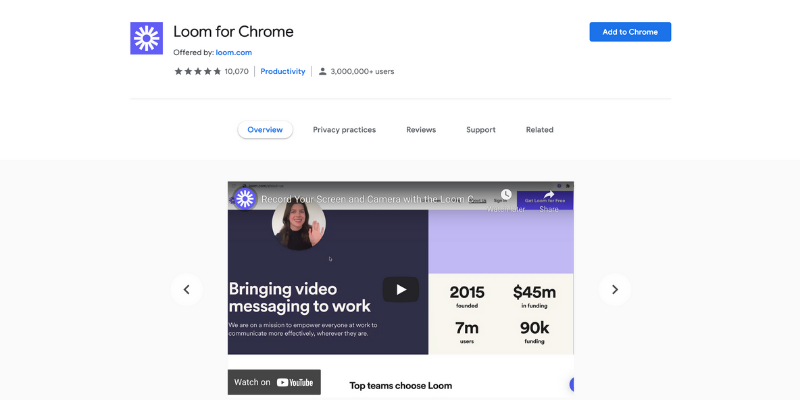
A number of current users: over 3 000 000 users
Free version: Yes
Paid version: Paid
Requires registration: Yes
With over 3 million active users, Loom is probably one of the most popular Chrome extensions among bloggers and not only. It enables you to record videos, share your screen and then share these videos with others. It’s great if you plan to do a course or you often have to record tutorials. The forever-free version gives you 5 minutes of screen time, and the paid version starts from $8/month (if paid annually).
The best part about Loom is that you don’t have to download or upload the videos you make. You just send a link to the recipient, and they could see the video (plus, you get notified when they do). You could edit your videos and even use different filters.

30-Day Grow Your Blog Challenge
I use the free version of Loom as I rarely have to record screen videos; I don’t have it as an extension but as an app on my iMac.
How to use it as a blogger: Add more credibility to your blog by including tutorials in your posts. Share your videos with your subscribers by simply sending the access links and track how many actually watched them. Having videos on your blog (no matter how short they are) boosts your SEO and adds extra engagement that will eventually pay off.
Add Loom as a Chrome extension by clicking here.
14. Marinara: Pomodoro Assistant
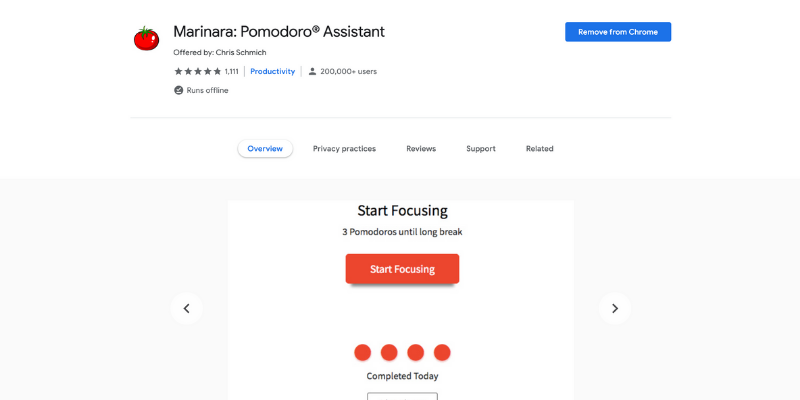
A number of current users: over 200 000 users
Free version: Yes
Paid version: No
Requires registration: No
This is a very simple and to-the-point tool you could use if you follow the Pomodoro time management method. In a nutshell, the Pomodoro method helps your productivity by enhancing your focus for a limited time (25 min is the standard), and then you get to have a short 5-minute break. After four slots of 25-minutes focused time, you get to take a long 15-minute break.
All that is simplified with the Marinara Chrome extension. I like it because you could choose how long your Focus Time and your Break Time should be. For example, when I write, I cannot have short slots of 25 minutes as that would rather ruin my writing sprint. In that case, I would choose to get a break every 60 minutes (less or more). My breaks always tend to be a little bit longer too.

23 Experts Tell You How To Get Over 100 000 Page Views To Your Blog
The extension allows you to set sounds for each notification. Also, the moment your Focus Time is over, a screen pops up and interrupts your work. In this way, you truly are notified that it’s time for a break. Of course, you could just keep working (in some cases, I do that).
How to use it as a blogger: If you struggle to stay focused for a long time (like me), just work one Pomodoro at a time. See how long it takes you actually to blog for better planning and time management.
Add Marinara: Pomodoro Assistant as a Chrome extension by clicking here.
15. Infinity New Tab
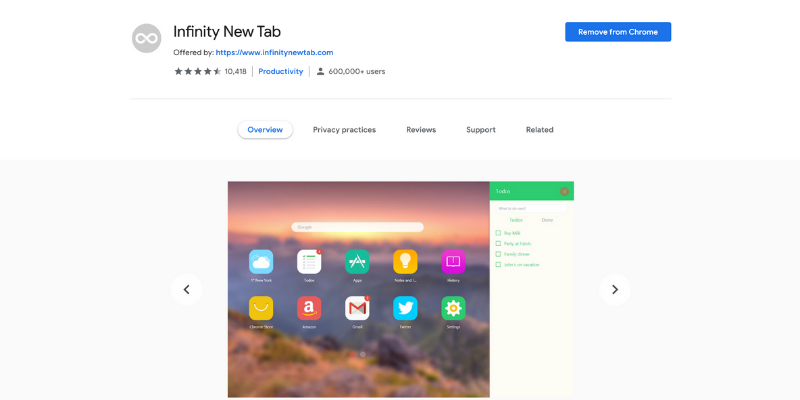
A number of current users: over 600 000 users
Free version: Yes
Paid version: No
Requires registration: No
I’ve never been into customized tab managers, but I had to try one of them for the sake of this post. I stumbled upon Infinity New Tab and another one (I wouldn’t mention its name as it lost the game). For the few days I’ve used the Infinity New Tab, I’ve grown to like it, and I am willing to keep exploring it.
What I like the most about it is the idea of getting organized and inspired at the same time. It allows you to customize the search engine wallpaper and organize your bookmarks. It also synchronizes between all of my devices and allows full design control. Now more boring search pages (no matter how functional they are).
How to use it as a blogger: Save your most visited sites as shortcut icons; have as many as you wish, change their layout, remove their text and customize the icons however you like.
Add Infinity New Tab as a Chrome extension by clicking here.
16. Bitly
A number of current users: over 500 000 users
Free version: Yes
Paid version: Yes
Requires registration: No
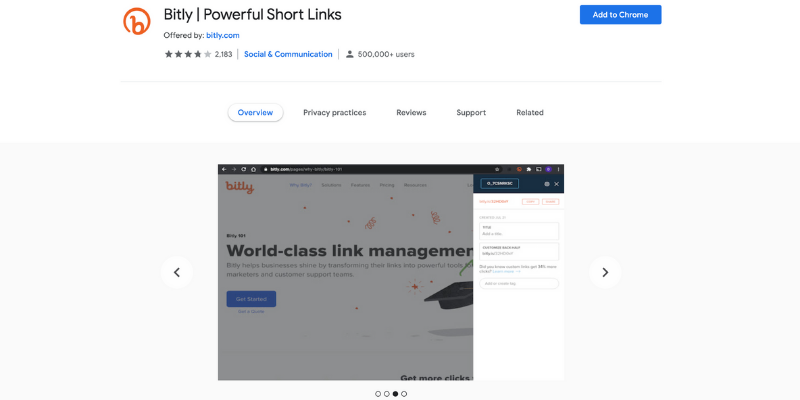
Of course, you know about Bitly – a tool that allows you to create short links that look and fit better in your emails, social media posts, and wherever else is needed. This extension does the exact same job as when you visit the Bitly website. It’s just the shortcut to the short links.
How to use it as a blogger: Use it in your social media posts and your bio descriptions. Also, use it wherever there is a restriction of how many characters you can write (such as Youtube descriptions. Keep in mind that even if you don’t have restrictions using short links looks less spammy, and Bitly’s short links are well-known around the web.
Add Bitly as a Chrome extension by clicking here.
17. Save to Google Drive
A number of current users: over 3 000 000 users
Free version: Yes
Paid version: Not for the extension itself
Requires registration: It uses your Google account
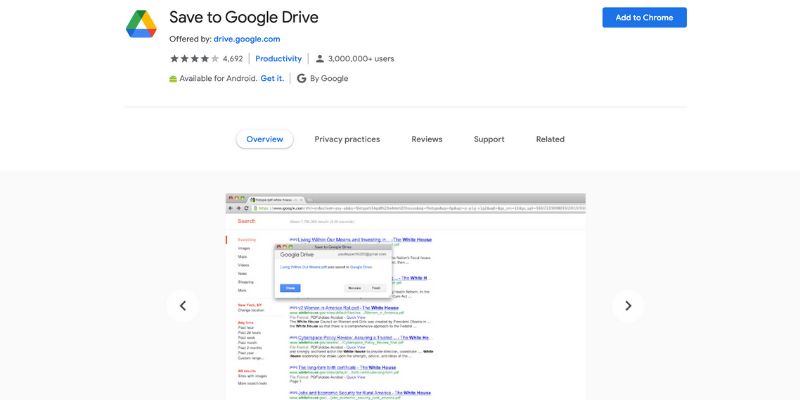
If you use Google Drive installing this extension just makes sense. This is especially if you often have to access your files from different devices or use Google Drive frequently. The cool thing about this extension is that it allows you to do a screen capture and save it as a PDF to your Drive.
Add Google Drive as a Chrome extension by clicking here.
18. Pocket
A number of current users: over 2 000 000 users
Free version: Yes
Paid version: Yes
Requires registration: Yes
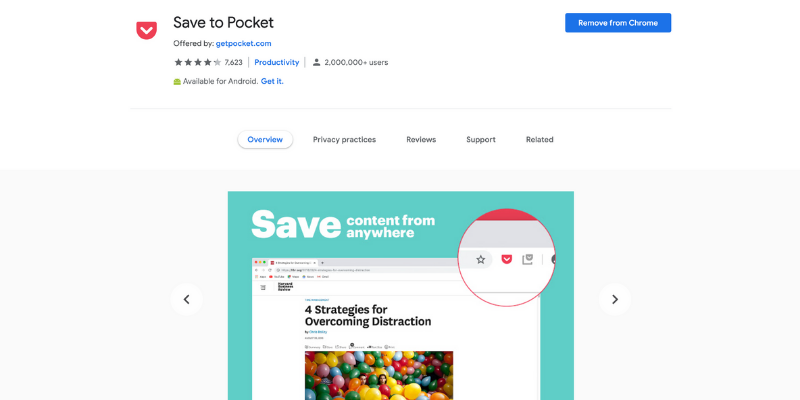
You’ve probably heard of that one already. Pocket allows you to save web content for later reading or watching (if it’s a video). The free account is completely enough for this. However, they offer additional features such as a permanent library, suggested tags, and unlimited text highlights for as little as $3.95/month.
How to use it as a blogger: Do you tend to keep all articles you’d like to check “one day” open in your Chrome tabs? That’s what I thought! Save them with Pocket and go back to them when you have time. No need to clutter your desktop, your tabs, and your mind by having them open at all times.
Add Save to Pocket as a Chrome extension by clicking here.
19. Cluster – Window & Tab Manager
A number of current users: over 60 000 users
Free version: Yes
Paid version: Yes
Requires registration: No (unless you wish to go for the paid version)
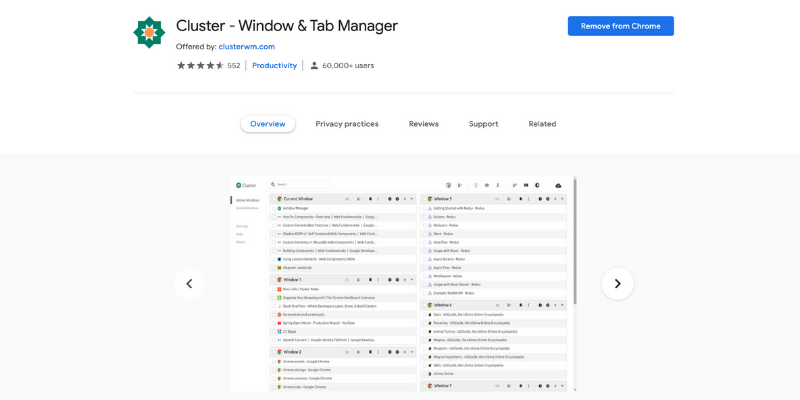
Talking of cluttered Chrome tabs… Cluster might be the savior of all bloggers… Allow me to explain. I have at least 7-8 Different windows opened at all times on my computer. Each one of these windows usually has another 5-6 (or more) open tabs. That’s an insane amount of open tabs that I wouldn’t want to lose, but I hate watching at.
Cluster allows you to save that combination of tabs, close the window and re-open it back (with all of its tabs) later when you actually need it. In this way, you give your device some break as it doesn’t have to waste power to keep them active. You free up some memory on your device, and that’s another way to have a properly fast computer/laptop.

20 Computer Hobbies That Will Entertain You For Long | Inside Of Happiness
On top of that, the paid version of Cluster allows you to sync your devices (through Cloud). It means that if you have a combination of tabs you saved on your computer, you could easily access them on your laptop during your summer vacation (’cause bloggers almost always work on their vacations too, it can’t be just me!).
How to use it as a blogger: One of the ways you could use this extension is to plan a list post with gifts. For example, if I were to write a Christmas gift ideas post and spend an hour selecting the best products to feature in my post, I could easily pile all of the links in one window, save it with Cluster and come back to it in a week when I would usually write the post.
Add Cluster as a Chrome extension by clicking here.
20. Skimlinks
A number of current users: over 9000 users
Free version: Yes
Paid version: No
Requires registration: Yes
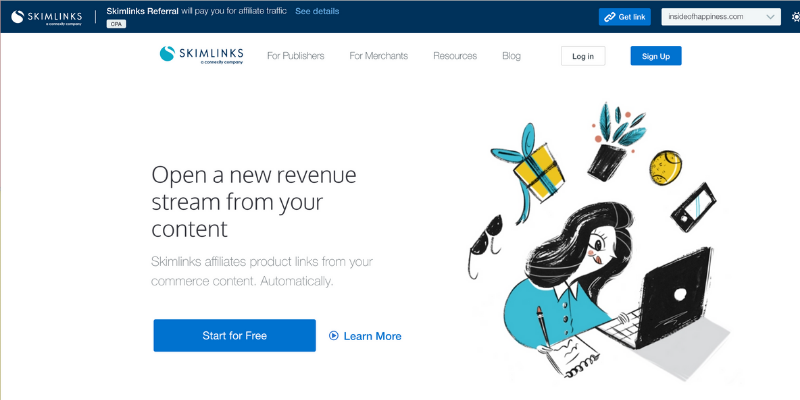
Skimlinks is probably the best Chrome extension for bloggers on this list. And I am not exaggerating.
If you are a blogger, then you know how important having affiliate links is.
Skimlinks Chrome extension could be used only after registration with the Skimlinks affiliate program. This program allows you to turn normal product links into affiliates even if you haven’t applied for being an affiliate with the company (as long as that company works with Skimlinks, of course). Registration is free, and after the installation of a shortcode to your blog, you could start earning some extra coins with your links.
You need Skimlinks if:
- If you’ve ever applied to an affiliate company and got rejected because you are too small or you niche doesn’t fit their requirements. If they work with Skimlinks you could still have their affiliate links on your blog.
- If you’ve visited a website and saw something awesome you’d like to promote but can’t find their affiliate application form (or aren’t sure if they have such). Just one click is enough to tell you if you could get paid by promoting that product.
- If you are fed up with signing up individually for every little affiliate program. Not everyone works with Skimlinks, but there are thousands of companies (both big and small) that do.
With the Skimlinks extension, you seriously need to click just once to know if that site has an affiliate program and how much they would pay you. For example, half a year ago, I applied to be accepted as an affiliate with Grammarly (the first extension I recommended in this post). They rejected me because my site didn’t fit their niche requirements (I was applying with my relationship blog). However, you could still see that my link is affiliate because I got it through Skimlinks. Yes, that’s really cool!
You could get that cool Chrome extension after signing up with Skimlinks. It’s free, and you could do it by clicking here. (yes, that is my affiliate link, thank you!)
Conclusion on the Best Chrome Extensions For Bloggers
That was a long list with Chrome extensions, but all of them are great time management tools that will make your blogging life easier. Of course, you don’t have to use them all, but if you managed to choose even one from that list, I know my two days of writing this post were worth it. Don’t forget to share this post with your blogging buddies and also check everything else I’ve got to say about blogging.
Pin this for later
Best Chrome Extensions for Bloggers

Blogger, dreamer, procrastinator, and lover of everything soul-touching. My mission is to make you laugh, provoke your thoughts, light up your day and inspire you to fall in love with life and yourself.